The ALIS eMAR organizes your Pass Meds workflow, generates important documents, and keeps your team informed of important medication details. The Medications Settings page is where you manage order scheduling and related functionality.
About Medications Settings
Only users with the right security role permission can manage Medications Settings, and most settings are configured at the community level. To access Medications Settings, click Settings > Medications.
Your team may have additional tabs available on this page:
- Drug Count: Enable and configure counts, and customize drug destruction methods. See Drug Count Settings.
- Barcode Scanning: Enable and configure Inventory and Med Pass scanning. Barcode Scanning Settings.
- eFax Refills: Enable and configure eFax refills and community contacts. Availability depends on your pharmacy integration type. See eFax Refills and How to Request Refills through your Pharmacy Integration.
- Drug Tagging: This is where you configure your community's Psychotropic tagging rules and, where enabled, auto-tag orders by drug class (Antibiotic, Antipsychotic). See How to Set Up Drug Auto-Tagging.
For assistance with updating security role permissions and enabling these other eMAR features, contact your Account Manager.
The rest of this guide covers the first tab, Medications.
Med Pass Time Shifts
This section sets your daily med pass time frames. ALIS uses four required shifts that together cover a full 24 hours. The default shifts are:
- Morning: 5:00AM - 10:59AM
- Noon: 11:00AM - 3:29AM
- Evening: 3:30PM - 7:29PM
- Hour of Sleep: 7:30PM - 4:59AM
Typically, your Onboarding manager will review these Med Pass Time Shifts settings and make changes with you prior to your scheduled eMAR 'go-live' in ALIS. However, once you've been actively using the ALIS eMAR, you may want to further update the names of your shifts or start times.
Your Onboarding manager usually reviews these shifts with you before your eMAR go-live. You can update shift names and start times later. After go-live, consult your Account Manager first so changes do not disrupt your current Pass Meds workflow.
Editing time frames, especially during a shift, can occasionally cause a timeout that drops some orders from Pass Meds. If orders disappear from the MAR after a change, click Retry Med Pass Scheduling to re-stamp the active orders in the current Pass Meds.
Sort Med Pass by Administration Times
This setting controls how the Pass Meds page is sorted. The ALIS default is Enabled, which is recommended. When enabled, residents appear in order of their earliest scheduled and unrecorded medication.
Default Service Level
The Default Service Level is the method used to administer an order. It preselects a Service Level when you process or manage orders and affects how the MAR is stamped.
The ALIS default is Administer, since most Assisted Living licenses administer medications for residents. Select the option most common for your residents. You can still adjust the Service Level per order.
If you set the default to Assistance or Third Party, additional toggles appear to control whether those orders show in the Med Pass, MAR, and Administer PRNs. Click Save to apply your change to the next order you process or add.
Variance Threshold
This setting determines how long before and after a scheduled med pass time an order shows as administered "on time" in Pass Meds. The ALIS default is 1 hr for all administration frequencies, and most organizations keep it. To adjust by frequency, click Show additional medication frequencies and update the individual dropdowns. See Why does a medication say "WAIT" or "LATE"?.
AI Scheduling Hints
AI Scheduling Hints are facilitated by Prescriber's Connection. Consult your Account Manager before changing these settings to confirm the impact on your pharmacy connection.
Will Try Later
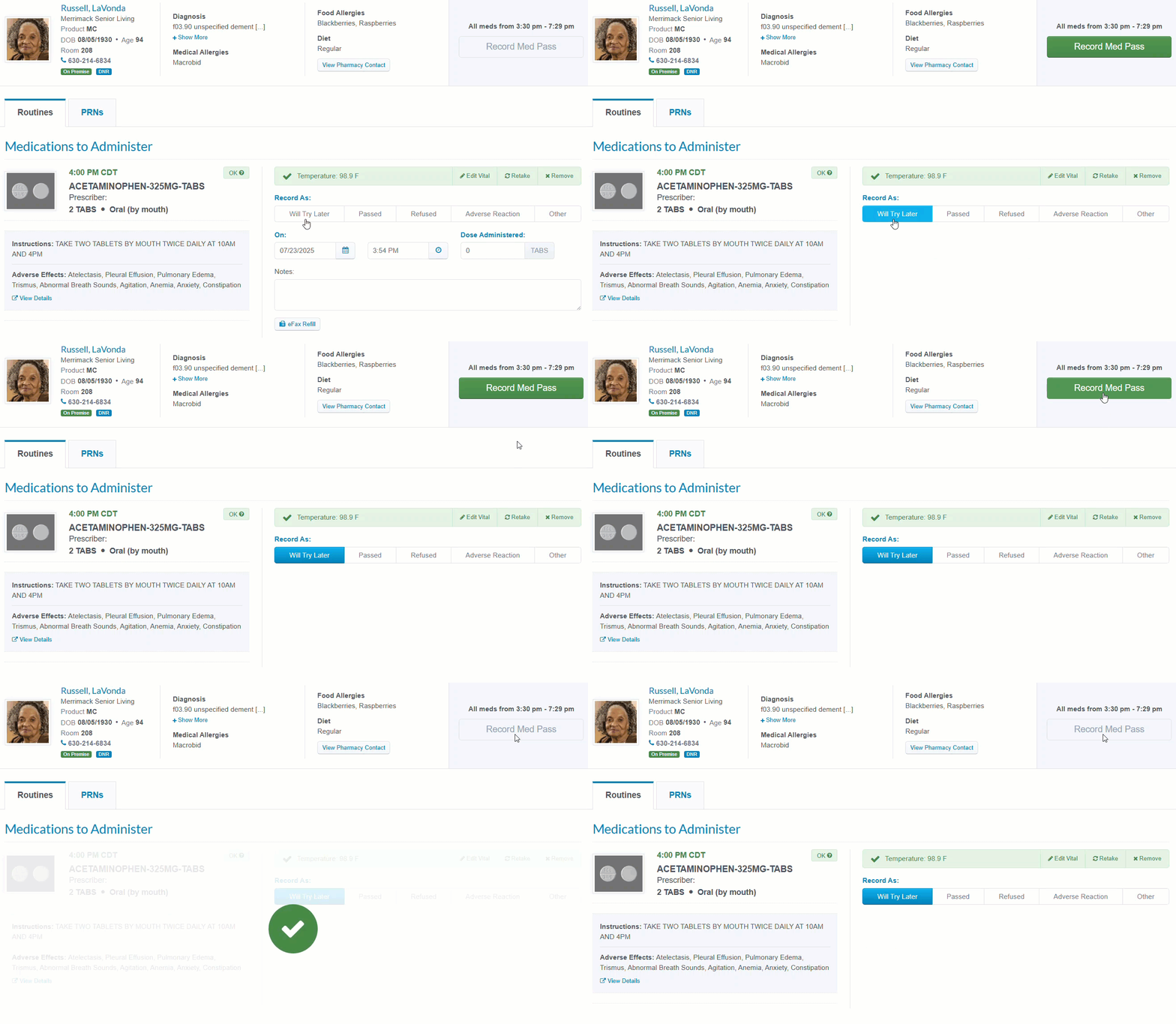
With this setting enabled, a Will Try Later button is added to the outcome options on the Record Med Pass page. The ALIS default is Disabled, and most organizations keep it disabled.
Will Try Later does not affect medication administration records. It gives med passers a way to indicate they have checked all orders before administration. Selecting it removes the time and dosage component, and the order still shows as Outstanding on the main Pass Meds page even after Record Med Pass is clicked.
 Medication Tags
Medication Tags create a badge or badges below a medication name on the Record Med Pass and Manage Orders pages. Tags also let you filter orders by type in reports, which is especially useful for the Medication List Report.
You can disable the default tags by clicking Disable, except for Controlled, Narcotic Drug, and Psychotropic Drug. ALIS auto-generates several tags, including Antibiotic and Antipsychotic, which Drug Class Auto-Tagging applies. To tag orders automatically by drug class or by psychotropic rule, see the Psychotropic Auto-Tagging Rules guide.
To create a custom tag, click +Add Tag, type a name, and click Submit. The tag is available the next time you process, add, or edit an order.
Physician Orders Disclaimer and Signature Lines
These settings customize the bottom margin of each page of your resident Physician Orders (PO) documents. By default, ALIS POs contain no disclaimer statement, and the default signature lines are Nurse and Physician.
To add a disclaimer, such as a pharmacy policy or refill authorization statement, type it into the text field and click Save. It appears on your POs the next time you view or download them.
To manage signature lines, click +Add New Method to add a line, or use Options to edit or disable an existing one. The first four enabled signature lines appear on the Physician Orders reports.
Medication Carts
These settings define which cart options are available to assign to each resident. If your community organizes medications on multiple carts, add the cart names here so staff can locate orders efficiently in Pass Meds.
Your Onboarding manager typically sets up cart names before order processing begins, but you can update them at any time, and changes reflect across ALIS automatically.
Add/Edit Medication Carts
To add a cart, click +Add Medication Cart, type the name, and click Save. To edit a name, click into the box and type. To delete a cart, click the red X next to its name.
Delete Medication Carts
If you need to delete any existing cart names, click the red X next to the name.
Deleting a cart also removes it from any residents already assigned to it.
Assign Medication Carts
Assign carts to residents from the Pharmacies and Manage Orders pages. You can also assign carts automatically by room using your Floor Plan settings. See How to Configure a Community Floor Plan
Informational Order Types
These settings define the Informational Order Types available when adding orders on residents' Manage Orders pages. ALIS auto-generates a list (Ancillary Orders, Code Status, Dietary Orders, Immunizations, and Lab Orders) that you can disable using the Options button. See Informational Orders.
Community Informationals
Community Informationals let you bulk apply informational notes to multiple residents at once. By default ALIS includes none, so no options appear until you add them.
To add one, click +Add Informational, select a Type from your Informational Order Types, and type details in the Notes field. To apply, multiselect residents' checkboxes and click Apply to Residents.
Specialty Settings
History Update Threshold
The ALIS default is Yesterday. This setting limits how far back your med passers can update administration records using Med Pass History. See Med Pass History.
Bulk Med Pass
The ALIS default is Disabled. Bulk Med Pass lets you bulk record order administration from the main Pass Meds landing page. It is not commonly enabled and is occasionally used during Onboarding to generate training data.
When Bulk Med Pass is enabled, a Bulk Med Pass On Time setting appears. It records bulk administration as "on time."
Vitals Validation
The ALIS default is Enabled. This setting prevents saving vitals when the entered values fall outside the range set when processing or managing orders. The red validation message helps prevent mistyped records and flags when an order should not be administered based on the vitals taken.
Administration Notes
The ALIS default is Disabled. When enabled, an Administration Notes field is added to the Process Order and Manage Orders pages for Routines, PRNs, and Treatments. Use it to add custom notes without editing pharmacy-sent instructions, for example, "When vitals fall outside of range, contact RN."
Some pharmacy integrations prevent editing the Instructions field, and most organizations prefer those instructions stay unchanged.
Identify Potential Duplicates
The ALIS default is Disabled. This setting alerts you when an incoming order you are processing shares identifying features, such as order name or Rx #, with an active order on a resident's MAR. See Map New Pharmacy Messages to Existing Orders.
Lock Med Pass Dates and Times
The ALIS default is Disabled, so the date and time fields can be edited when recording administration in Pass Meds. When enabled, those fields lock and auto-populate with the date and time the Pass Meds button was clicked on the landing page.
Weight Tracking and Variances
This feature is behind an entitlement and requires an ALIS team member to enable it before it appears in Specialty Settings. Once the entitlement is on, set the toggle to Enabled to make it visible in ALIS. For help enabling the entitlement, contact your Account Manager or our ALIS Customer Success Team.
Weight Tracking and Variances shows which residents lack a weight record within a set duration, and whether a recorded weight has a percentage or unit variance that needs attention. When enabled, it adds a Monthly Weights option in Bulk Record Vitals and a Variances tab in Scheduled Vitals for bulk recording and viewing weight variances.
The default settings are:
- Product Type: All available company Product Types
- Duration: One Calendar Month
- Percent Change: 5%
- Unit Change: 5 lbs
To change these, click Manage, enter your values, and click Submit.
A community-level Weight Tracking and Variance report is automatically available when this feature is in use. For company-wide weight variance reporting, ALIS can enable the Weight Monitoring Report in your ALIS HQ. Contact your Account Manager for assistance.
MAR Settings
The ALIS default is Enabled. This setting controls how much health profile and demographic information from the cover page also appears on each page of a resident's MAR.
Simplified MAR example:
Non-Simplified MAR example:
Medication Exceptions
When an order is not passed as directed, Pass Meds offers three exceptions: Refused, Adverse Reaction, and Other. By default, selecting Other prompts the med passer to type a reason in a required text field.
To standardize this language, you can enable Medication Exceptions, which replaces the open text field with a customizable dropdown of reasons.
Enable Med Pass Exception Options
TThis feature is behind an entitlement and requires an ALIS team member to enable it. Once on, enable Med Pass Exception Options per community in your Company Settings page.
In the Medication Exception section, disable any auto-generated option with Disable, or click +Add New to add one. The list always appears alphabetically in Pass Meds. To share new options, multiselect them, click Copy To, choose the communities, and click Send.