The Invoice Due Dates feature allows your community to add a due date to invoices that is separate from the Invoice Date. When enabled, the system calculates a due date based on the configuration selected in Billing Settings. Once configured, accounts receivable aging is based on the Invoice Due Date rather than the Invoice Date. This helps teams manage payment timelines and collections based on when balances are actually expected to be paid.
Enable Invoice Due Dates
Invoice Due Dates are controlled by a setting in Billing Settings on the General tab.
Step 1:
- At the top of your ALIS screen, click Settings > Billing.
- In the General tab, locate Invoice Due Dates in the Right Column.
- Set Invoice Due Dates (Yes/No Toggle) to Yes.
- Scroll down past "Payment Preference Notes..." and click Save Changes.
When this setting is enabled, the Invoice Due Date configuration fields appear in the left column of the General Settings section.
Step 2:
- In the General tab, locate the Invoice Due Date fields in the left column.
- Choose one of the following options:
- Specific day of month
- X days after invoice date
- Enter the appropriate date or value for your community’s billing practices.
- Scroll down past "Payment Preference Notes..." and click Save Changes.
Important Note: Turning the setting on or off does not change the due dates or aging information for existing invoices. Current and past invoices retain their original dates and aging status.
Invoice Due Date Options
Communities can configure invoice due dates using one of two methods.
Specific Day of the Month
Invoices are due on the same calendar day each month. This option is commonly used when communities want invoices to be due on the same date each month.
Example:
| Invoice Date | Configured Due Date | Resulting Due Date |
|---|---|---|
March 1 |
15th of month |
March 15 |
April 1 |
15th of month |
April 15 |
X Days After Invoice Date
Invoices are due a set number of days after the invoice date. This option is commonly used when communities want to provide a fixed payment window after invoices are issued.
Example:
| Invoice Date | Days After Invoice | Resulting Due Date |
|---|---|---|
March 1 |
30 days |
March 31 |
April 1 |
15 days |
April 16 |
Invoice Date and Invoice Due Date
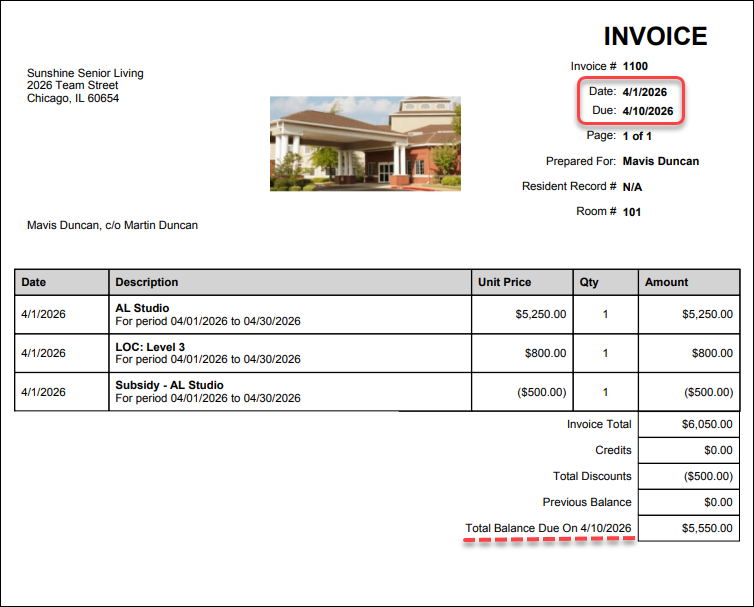
Both dates are reflected throughout ALIS workflows, reports, and on the Invoice PDF.
- (Invoice) Date – The date the invoice was created in ALIS.
- Due Date – The date the invoice is due, as configured in Billing Settings.
Invoice PDF example:
Edit Dates on Invoices
Invoice dates can be updated from either the Resident Profile > Invoices section or the Invoices page.
- Open the invoice and click Options > Edit to launch the Invoice Editor.
- In the top-right corner, click Edit Dates.
- Use the calendar icon(s) to adjust the Invoice Date and/or Due Date.
- Click Change to save your updates.
Impact on Billing and Aging
When Invoice Due Dates are enabled:
- Invoices display a calculated Due Date.
- Accounts receivable aging is based on the Invoice Due Date rather than the Invoice Date.
- Collections workflows evaluate balances based on when they are due, not when the invoice was created.
This helps communities more accurately track overdue balances based on their billing policies.
Impact on ALIS Pay payment pulls
If your community uses ALIS Pay to collect payments through ACH or credit card, Invoice Due Dates are also considered when referencing balances in the Payment Center.
In the + Collect ACH/CC sidebar, the Balance Due As Of date defaults to the first day of the current month. Adjust this date as needed to align with your configured Invoice Due Date to ensure all payers with an outstanding balance as of that date are included.
For communities using Invoice Due Dates, the balance reflects amounts due based on the configured due date logic, helping ensure payment collections align with billing and aging practices.
Related Articles: